Operating Environment
Vket Cloud SDK requires the following Unity editor version:
- Unity 2019.4.31f1 (SDK13.7.7 and earlier)
- Unity 2022.3.6f1 (SDK13.7.7 and later)
-
Unity 2022.3.22f1 (SDK16.5.6 and later)
-
SDK13.7.7 supports both Unity 2019 and 2022 versions.
If the above version of Unity is not installed, install by following the instructions below:
-
Download Unity Hub (From here)
-
Find and download the specified version from Unity -Download Archive (Click the “Unity Hub” option)

Please use one of the operating systems below when running Unity.
- Windows 11, 64-bit
- macOS 15.7+.
Also, for the recommended device specs for entering worlds built with Vket Cloud SDK, please check the recommended environment in How to Play Vket Cloud Worlds.
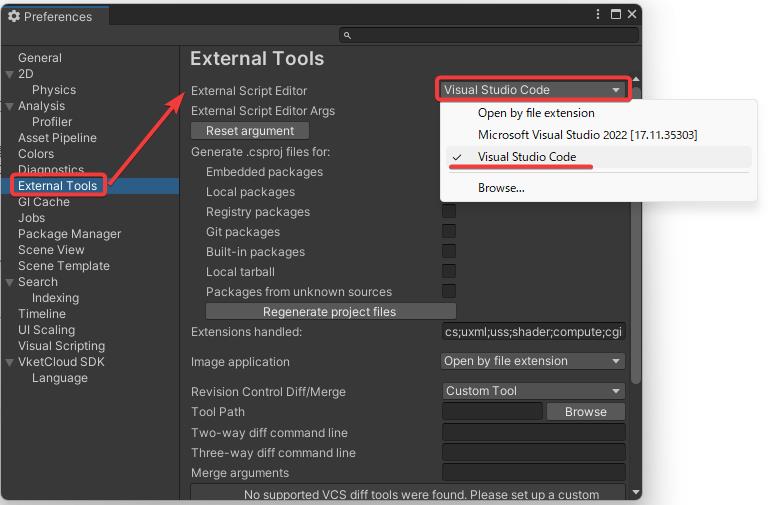
- IDE: When editing HeliScript, Visual Studio is not recommended due to the encoding issue. If you want to edit in an environment similar to Visual Studio, please use Visual Studio Code.
Note
When you open and save HeliScript created with Unity Vket Cloud SDK in Visual Studio, it may become ANSI, and you may not be able to build.
The following description explains how to change the editor that opens from Unity to Visual Studio Code.
How to Change the Unity Editor to Visual Studio Code
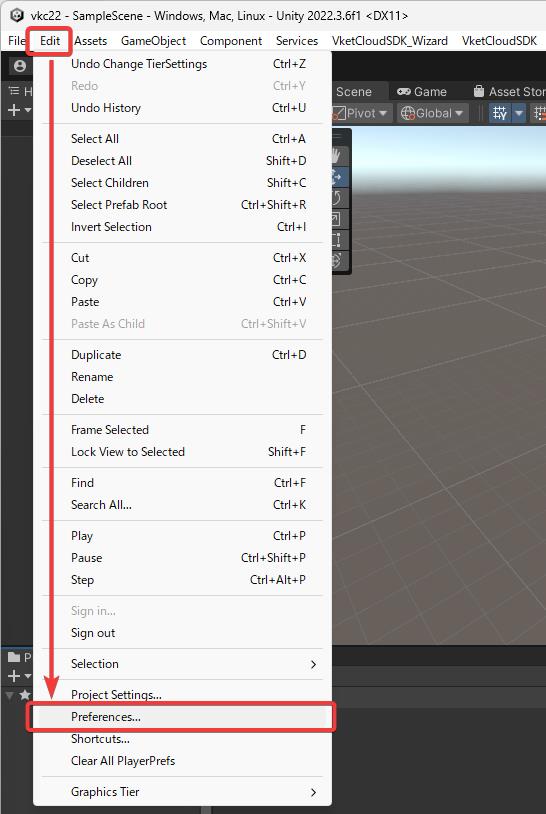
Open the "Preferences" window from the Unity menu by selecting Edit > Preferences.
In the "External Tools" tab, select "Visual Studio Code" from the "External Script Editor" dropdown menu.