Import Scene
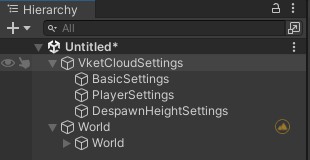
Overview
Import Scene loads built world data (the world JSON and related files in the release folder) into your Unity project and restores it as a Unity scene.
The following are imported:
- World settings (Vket Cloud Setting: world name, camera, avatar, rendering, my avatar, etc.)
- HEO objects and fields listed in the world JSON (placed as children of the
Worldobject) - Despawn area settings
- The avatar, field, image, motion and GUI files used by the above (copied into the folder you select)
Note
Items other than HEO objects (such as lights) and spawn points (spawns) are not imported.
Prerequisites
Make sure the following conditions are met before importing.
| Condition | Details |
|---|---|
The release folder exists |
The release folder directly under the Unity project (the same level as Assets) is used. |
| A world JSON exists | At least one *.json file is required directly under release/data/Scene/. |
| Required folders exist | release/data/ must contain all five folders: Avatar, Field, Image, motion and gui. If any is missing, copying the files fails. |
The destination is inside Assets |
Select a folder inside the Assets folder. |
| The world JSON is valid | The JSON must contain rendering, camera, physics, voiceattenuation, myavatar, scripts, avatars and dummyavatars.In addition, myavatar and each element of avatars need emotions (an empty array [] is fine), and each element of avatars needs filename (the avatar file path). |
AreaColliderForDespawn exists |
The imported HEO must contain an object named AreaColliderForDespawn. |
How to Use
1. Open the menu
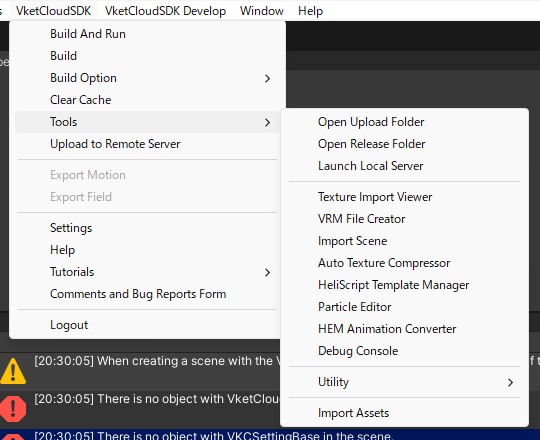
From the Unity menu bar, select Vket Cloud SDK > Tools > Import Scene.
2. Select a JSON file
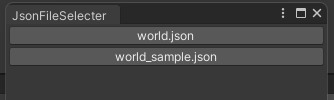
If release/data/Scene/ contains only one JSON file, this step is skipped and you proceed to step 3.
If there are multiple JSON files, a window with a button for each file name opens. Click the button of the JSON you want to import.
3. Select the destination folder
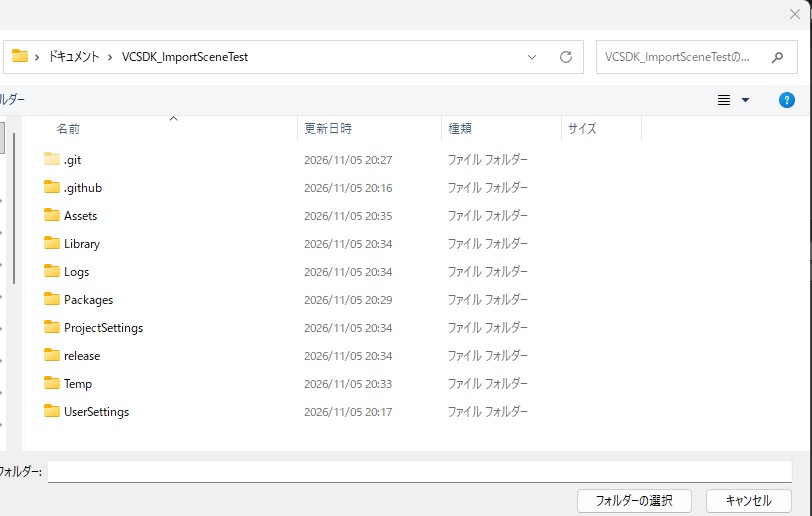
A "Select Folder" dialog opens. Select the folder the files will be copied into.
Warning
- Always select a folder inside the
Assetsfolder. Selecting a folder outsideAssetsresults in an error. - Selecting the
Assetsfolder itself makes the copy fail. Create a subfolder such asAssets/ImportedWorldbeforehand and select it.
4. Run the import

When you select a folder, the import starts and a progress bar is displayed. The following steps are performed in order:
Avatar,Field,Image,motionandguiinrelease/dataare copied into thedatafolder inside the selected folder. Files that already exist at the destination are skipped, not overwritten..meta,.bat,.gitkeepand.shfiles are not copied.- A
VketCloudSettingis created if the scene does not have one. - The contents of the world JSON are applied to
VketCloudSetting. - HEO objects and fields are loaded as children of the
Worldobject. - The despawn area is set.
5. Completion
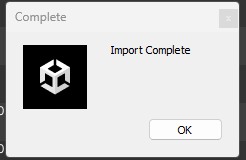
When the "Import Complete" dialog appears, the import is finished. A World object is created in the Hierarchy, and the imported HEOs are placed under it.
Troubleshooting
| Symptom | Cause and solution |
|---|---|
| Nothing happens when selecting the menu | The release/data/Scene/ folder does not exist, or it contains no *.json file. Check the Console for errors or warnings. Build the world first to create the release folder. |
| An error dialog appears right after "Select Folder" | A folder outside Assets was selected. Select a folder inside Assets.In the current version, the dialog body shows the key name ImportProcessSystem_Folder_Select_Error instead of a sentence. |
{file name} not found |
The selected JSON was not found in release/data/Scene/. |
Failed to read the JSON (WorldJsonSerializeError) |
The JSON format is invalid. Check the message in the dialog. |
Failed to copy files (FileCopyError) |
One of Avatar, Field, Image, motion or gui is missing in release/data/, or the Assets folder itself was selected as the destination. |
An error occurred during import (ImporttingError) |
The JSON lacks required items (such as rendering or camera), or the imported HEO does not contain AreaColliderForDespawn. |
| "Value cannot be null. Parameter name: source" | emotions is missing in myavatar or avatars in the JSON.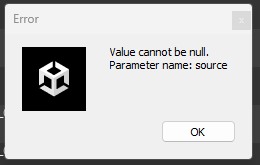 Add "emotions": []. |
| "Value cannot be null. Parameter name: path2" | filename is missing in each element of avatars in the JSON (this happens when only filename_png, filename_astc and filename_etc2 are output).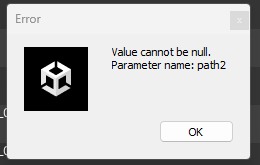 Add filename with the avatar file path (e.g. Avatar/UrbanStyle_png.hrm). |
Warning
JSON files output by building a world with the current version lack emotions and the filename of avatars, so the import fails as is (the two errors above). Add the items above to the JSON you import.
Note
Processing stops when an error occurs, but files that were already copied are not deleted. Before retrying, check the contents of the destination folder.